You have a photo that is almost right. The background is dull, the lighting is flat, and a stray object sits in the corner. A reshoot means another day and another budget.
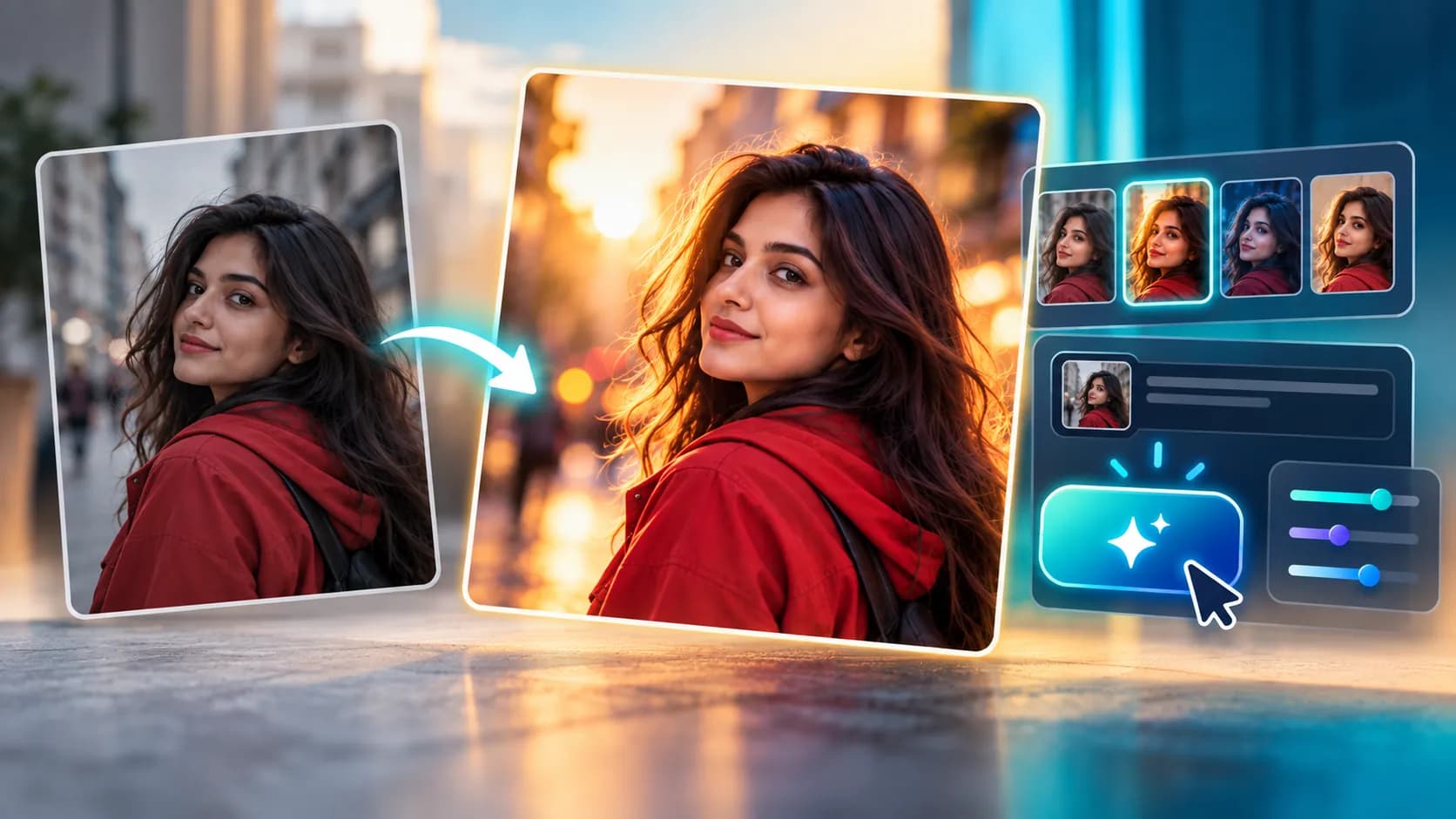
Older AI editors offered a shortcut with a catch: they regenerated the whole picture, so the subject often changed. GPT Image 2.5 Flare image-to-image is built for the opposite job. You give it a photo and a written instruction, and it changes what you asked for while keeping the rest of the picture intact.
This guide explains what the model does, how it differs from Sunburst, and how to edit photos with AI on
RentPrompts, where you can work with multiple AI models in one place.
What Is GPT Image 2.5 Flare Image-to-Image?
OpenAI announced GPT Image 2.5 on September 8, 2026, alongside ChatGPT Images 2.5. The family has two models, Flare and Sunburst, and both can generate images from text or edit existing ones.
Flare is the fast option. OpenAI describes it as its fastest model for high-quality, everyday image generation, and its prompting guide notes that both models improve precise editing and subject preservation. Some providers report up to 50% lower latency than GPT Image 2, but treat that as a provider claim rather than a promise for your own workload.
For editing, you can pass one image to change it or several reference images to combine subjects and styles into one result.
Flare vs. Sunburst
|
Flare |
Sunburst |
| Speed |
Fastest |
Slower |
| Focus |
Everyday generation and quick edits |
Extra precision for detailed creative work |
| Best for |
Drafts, social content, high-volume edits |
Final, detail-heavy images |
OpenAI's own advice is simple: start with Flare when speed matters, and move to Sunburst when quality requirements are demanding.
How to Edit Photos with AI on RentPrompts
RentPrompts is a generative AI platform where you can create images, videos, audio, and text from one workspace. Its Generate section lists image models side by side, and it says you can use them without a subscription. Here is a simple workflow.
- Sign in and open the image workspace. Go to the Image section under Generate on RentPrompts.
- Pick your model. Browse the image model list. RentPrompts adds new models regularly, so look for GPT Image 2.5 Flare there, or choose another image model that suits your edit.
- Add your photo and write the instruction. Describe what should change and what must stay the same.
- Generate and review. Check the result against your original before making another change.
- Refine in small steps. Adjust one thing at a time until the photo looks right, then save your favorite version.
Prefer your phone? The Rentprompts Android app also lists tools for enhancing photos, removing backgrounds, and upscaling images.
Compare Models Before You Commit
Not sure which model gives the best edit? RentPrompts has an
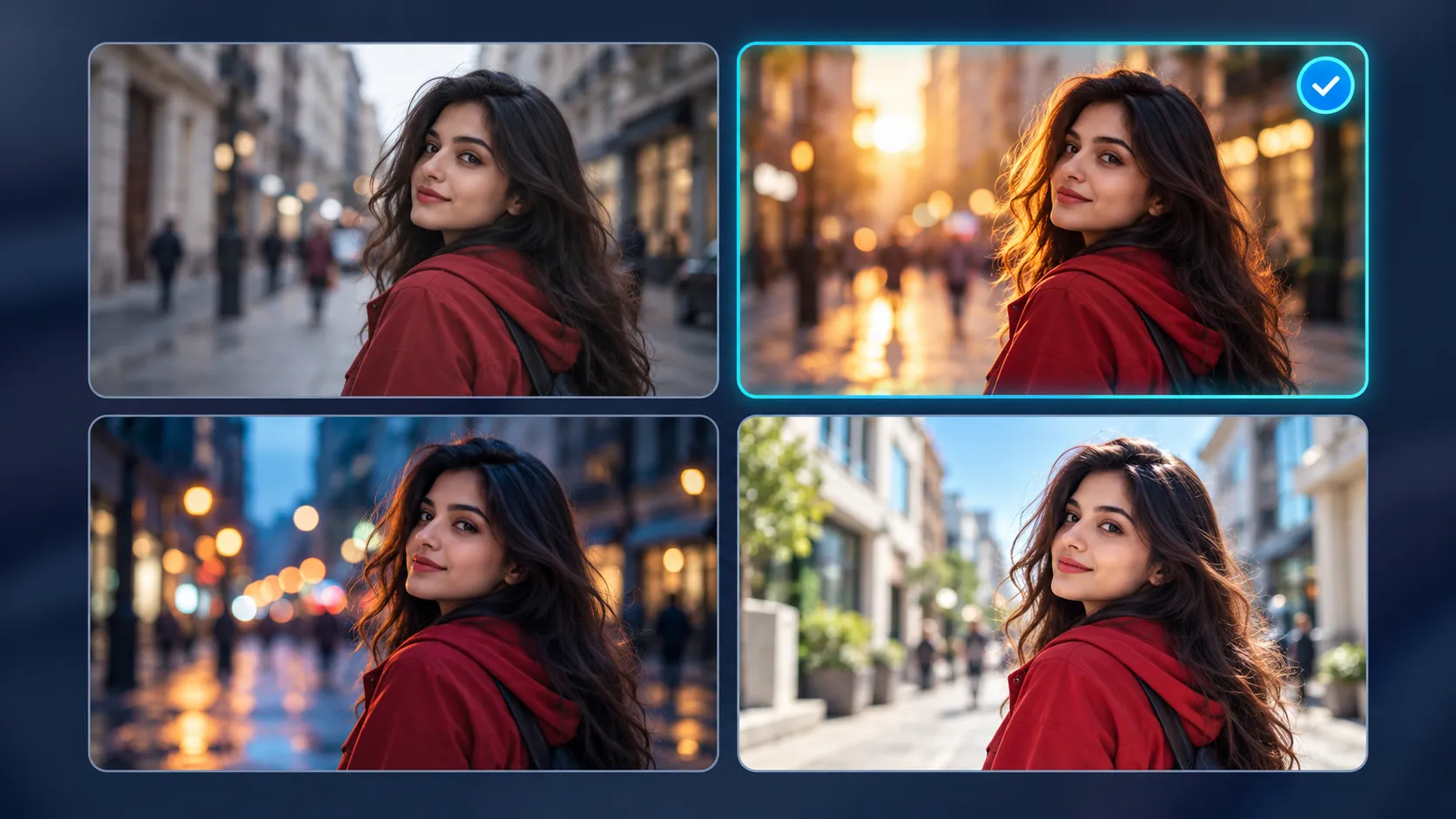
Image Arena that runs the same prompt across four image models so you can compare style, prompt adherence, and detail side by side.
That makes it easy to test Flare against other models on your own photo instead of guessing from marketing pages.
Settings and Cost
OpenAI documents six quality settings for Flare: low, medium, high, xhigh, max, and auto. Lower settings are faster and cheaper, while higher ones add detail for final images.
- Drafts: use a lower quality to test whether your instruction works.
- Finals: step up in quality once the edit looks right.
On RentPrompts, generations use credits rather than a monthly plan. Each model page shows what a generation costs, so check it before you run a large batch. You can review options on the
RentPrompts pricing page.
Practical Use Cases
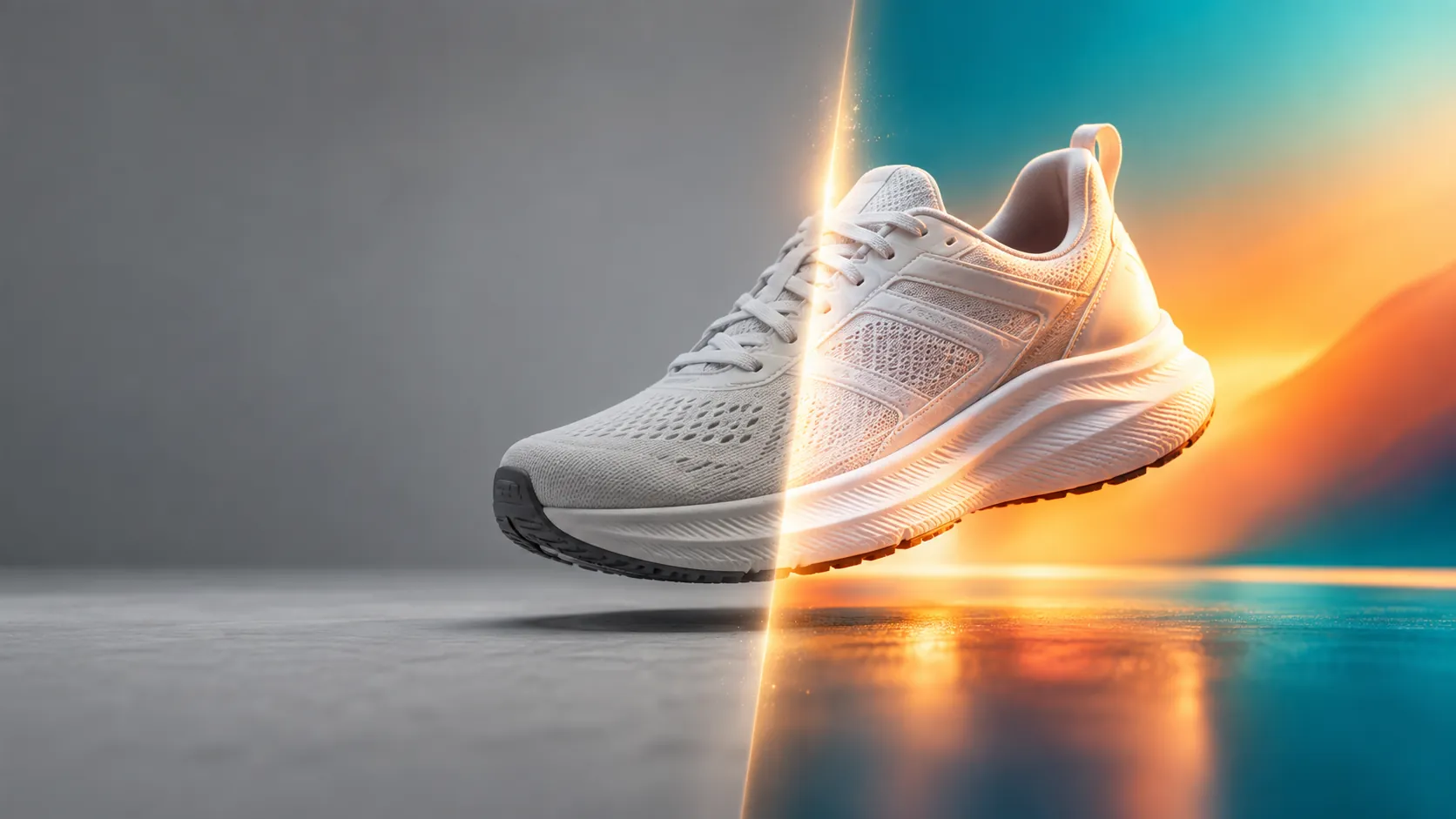
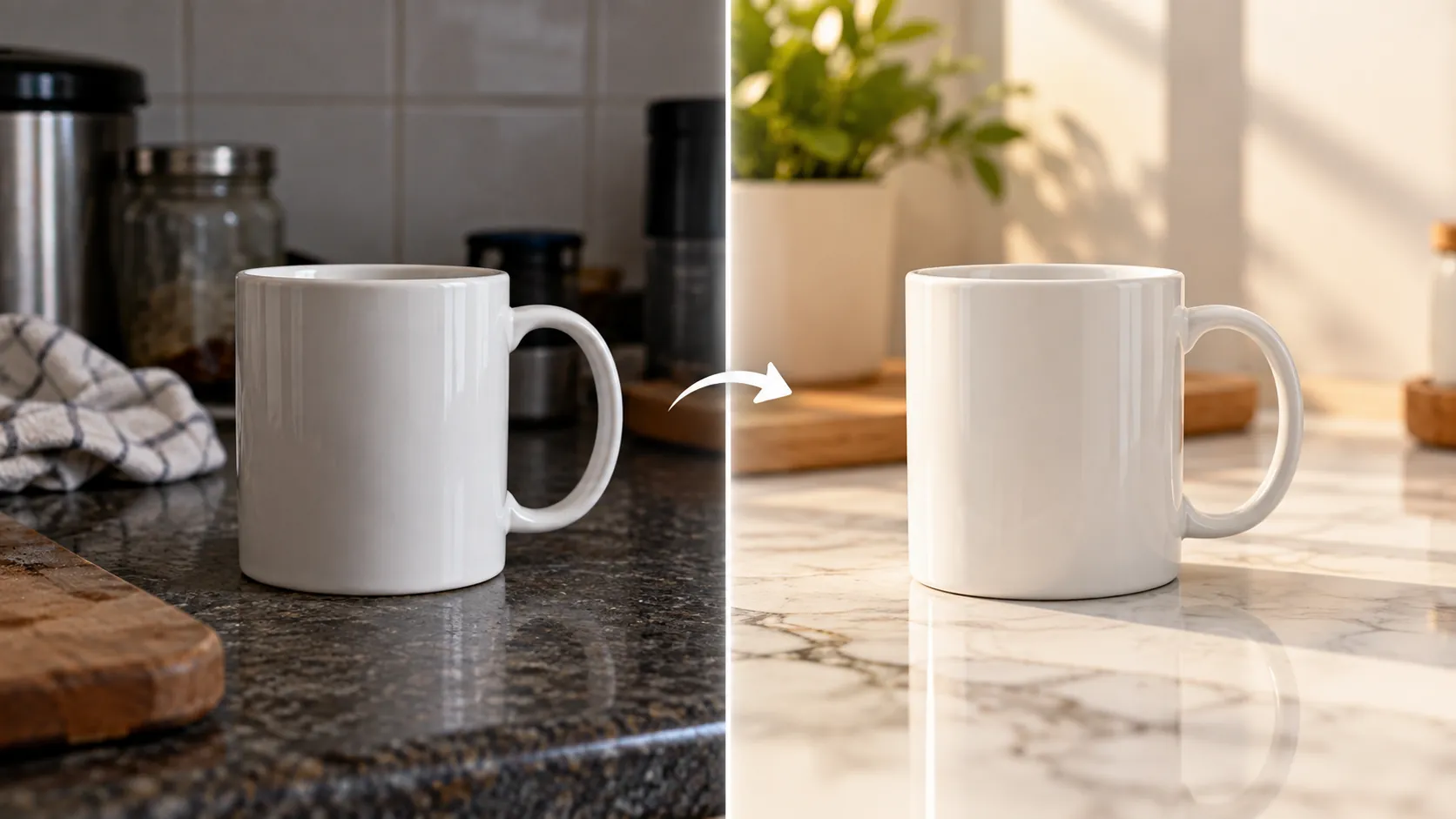
- Product photography: swap the background and improve lighting while keeping the product recognizable.
- Social media content: create several versions of one approved photo for different channels.
- Style blending: combine a subject photo with a style reference.
- Quick retouching: remove distractions, change colors, or adjust the mood of a scene.
If you would rather use ready-made tools than write prompts, browse the
RentPrompts marketplace for AI apps built by the community.
How to Write Better Edit Prompts
Edit models work best when you say what changes and what stays. Compare these two:
- Weak: "Make it look better."
- Stronger: "Replace the background with a bright marble countertop. Keep the product's shape, color, and logo exactly as they are."
A few habits help:
- Change one or two things per request.
- Name each reference image by its role, such as "the subject photo" and "the style reference".
- Test at lower quality first, then upgrade for the final render.
Need help getting started? RentPrompts also offers a prompt generator and prompt bundles for structured templates.
Common Mistakes to Avoid
- Stacking too many edits. Long lists of changes dilute the result. Edit in passes.
- Forgetting the "keep" instruction. If the subject's identity matters, say so explicitly.
- Rendering finals too early. Draft first, polish later.
- Trusting AI text in images. Generated lettering can still need to be rebuilt in a design tool for production work.
Frequently Asked Questions
What is GPT Image 2.5 Flare image-to-image?
It is OpenAI's fast image-editing model in the GPT Image 2.5 family. You supply a photo and an instruction, and it edits the image accordingly. It can also combine several reference images.
What is the difference between Flare and Sunburst?
Flare is the faster option for everyday work. Sunburst is slower and offers extra precision for detailed creative projects.
Can I edit photos with AI on RentPrompts without a subscription?
RentPrompts states that you can access its AI models without a subscription. Usage is based on credits, so check the credit cost on each model page.
How do I know which model is best for my photo?
Run the same prompt in RentPrompts' Image Arena and compare the results side by side.
Conclusion: Start With One Edit
Pick one photo you already own and give it a single, specific edit today. Write a clear instruction, say what must stay the same, and refine in small steps.