I Turned My Selfie Into a Vice City Style Character: My Honest Test
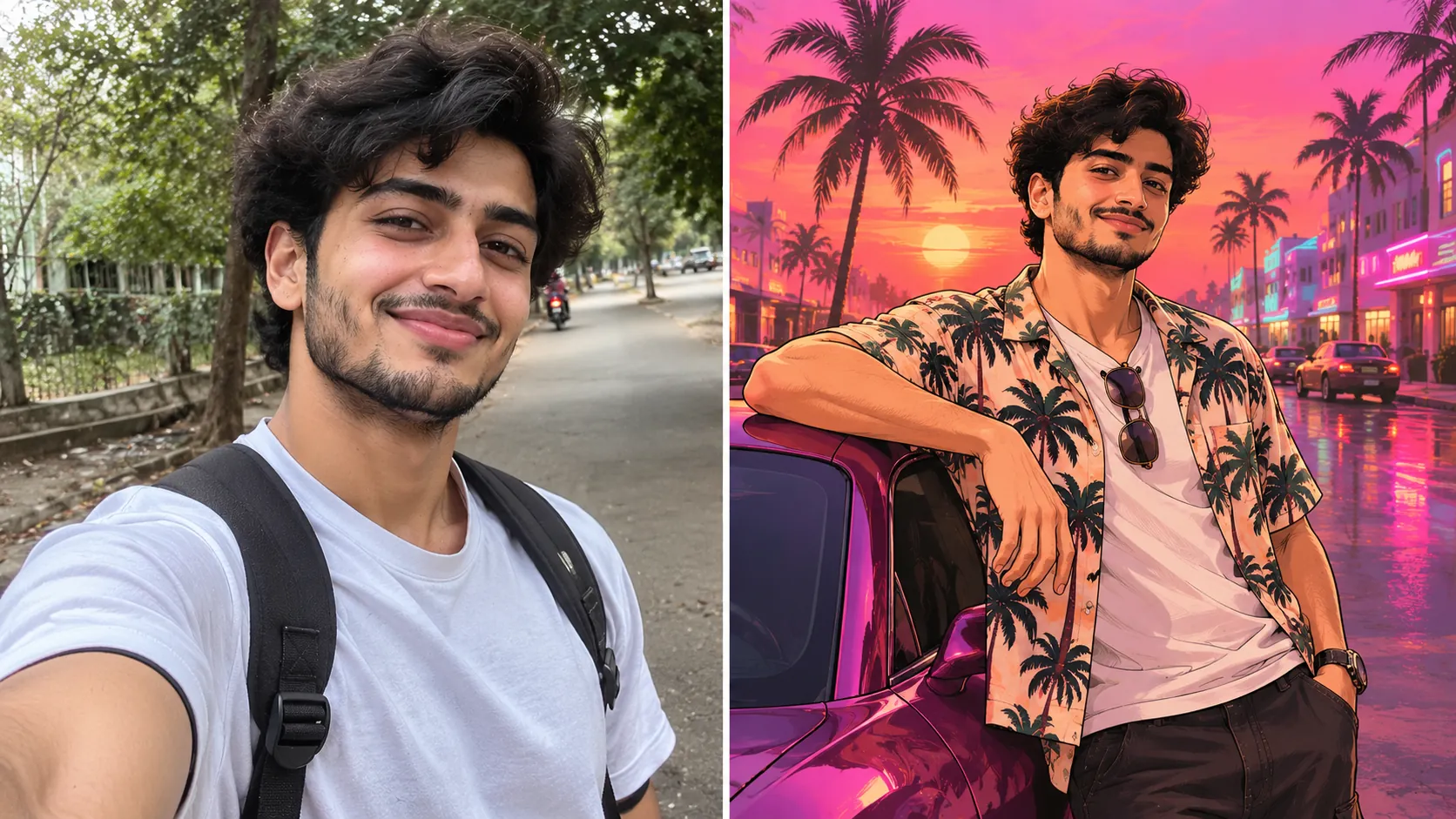
TL;DR (Too Long; Didn't Read)
- The GTA 6 Photo Filter app on RentPrompts turns your selfie into Vice City loading screen style art.
- You can pick looks inspired by Lucia, Jason, Michael, Franklin or Trevor, and scenes like a beach, a neon night or a mugshot.
- Couple mode lets you upload two photos for a Jason and Lucia style duo.
- It needs a clear front facing photo, works best with up to two people, and is unofficial fan style art.
Introduction: One Selfie, One Big Surprise
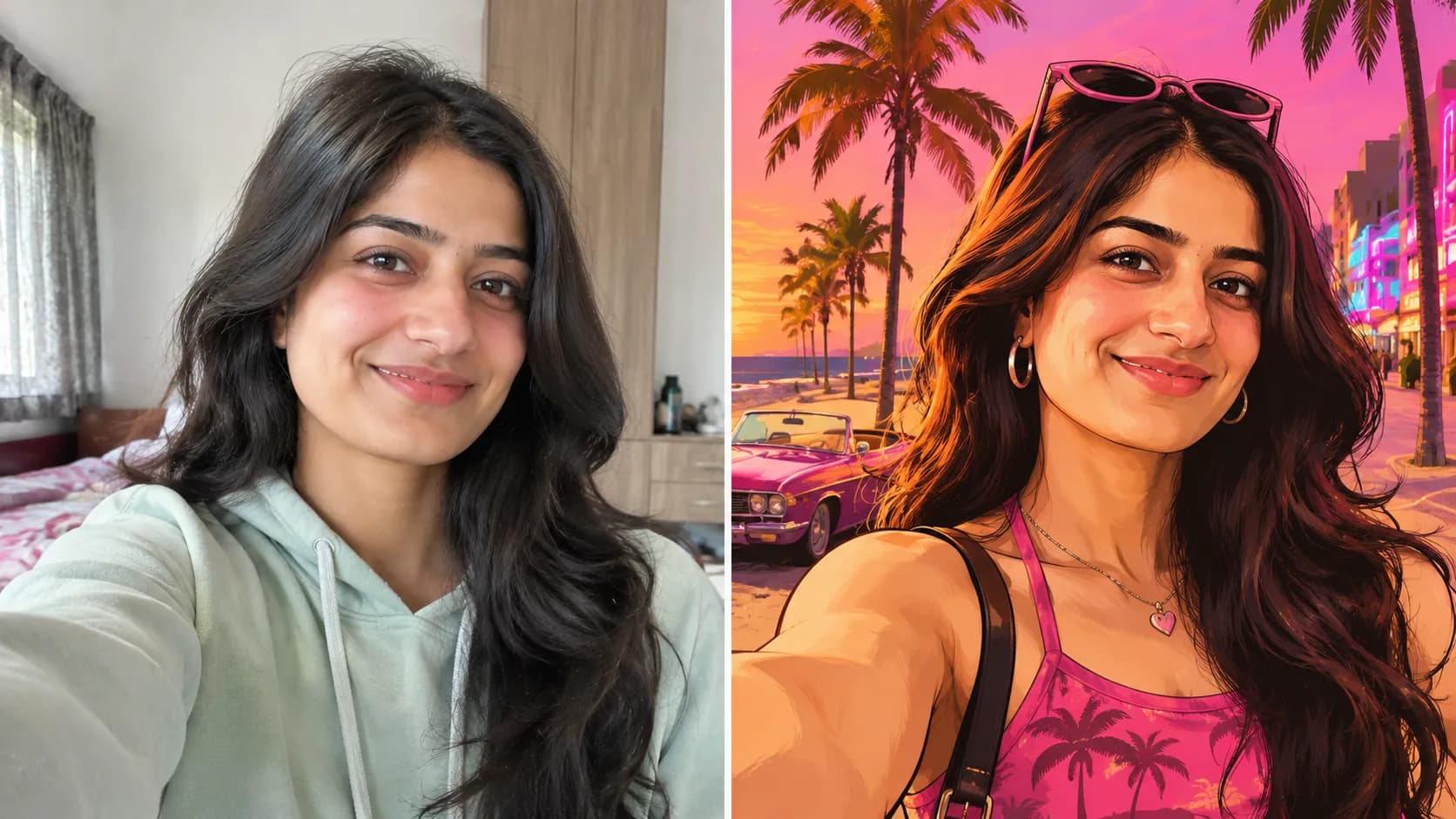
I uploaded one simple selfie, picked a look and a scene, and hit run. A few moments later, I was staring at myself as a character in a neon soaked Vice City story. The bold colors, the dramatic lighting and the game scene mood made me grin. It looked like a loading screen, and the character was me.
That is how my test of the GTA 6 Photo Filter app on RentPrompts went. I explored the looks, tried different scenes, and the results impressed me. Here is how it works, what I learned and where it falls short.
What Is This App?
In simple terms, it is a photo filter. You upload a selfie, and it makes a stylized picture of you in a GTA inspired Vice City style. The
app page calls it fan art, so it is not official artwork.
The page lists these options:
- Looks: Lucia, Jason, Michael, Franklin or Trevor inspired.
- Scenes: Vice City Beach, Neon Night, Robbery, Mugshot or your own city.
- Couple mode: Upload 2 photos for a Jason and Lucia style duo.
How I Used It
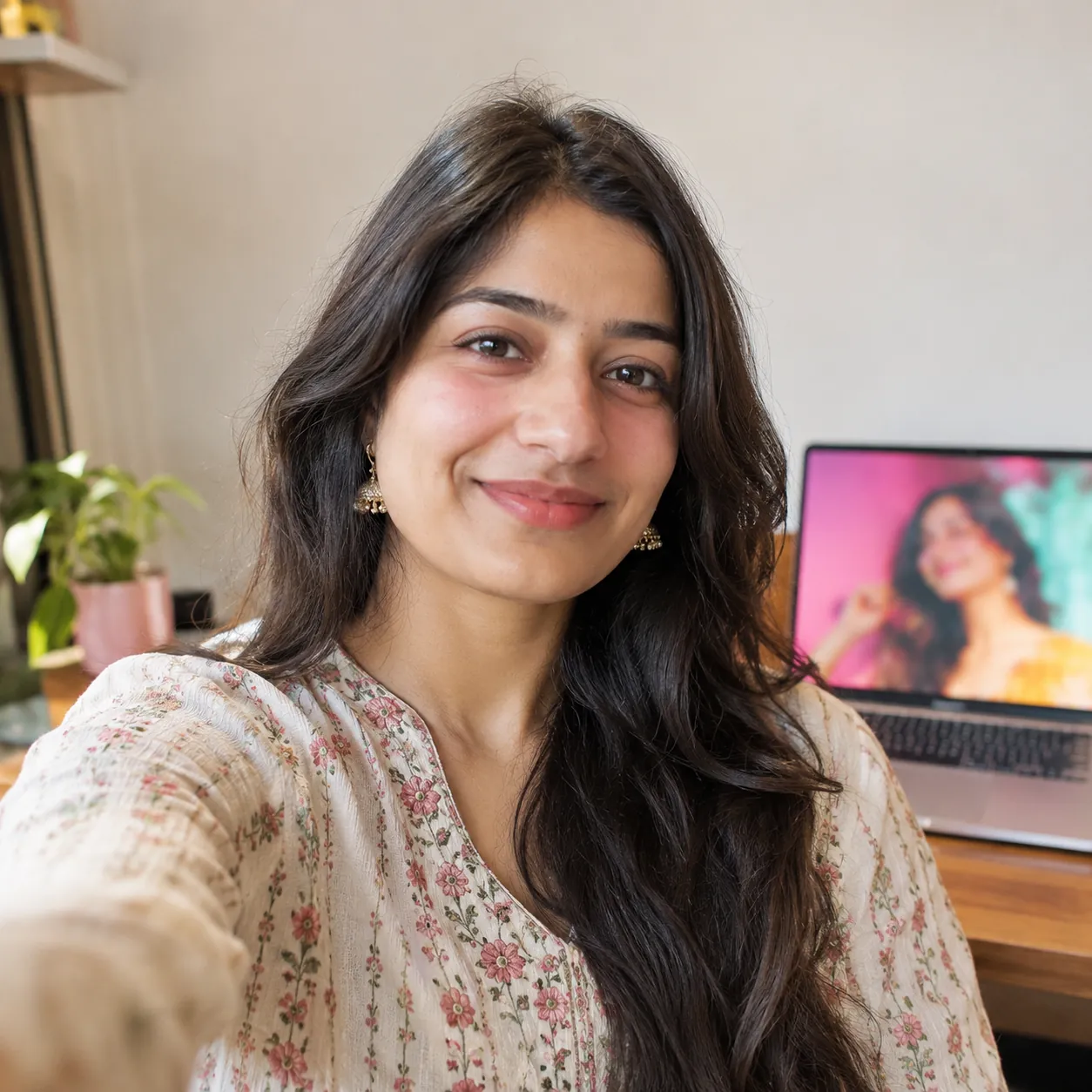
Here is my simple flow:
- Open the app page and click Try Now.
- Sign up or log in. The page shows 10 Joules free with signup.
- Upload a clear, front facing photo.
- Choose your look and scene. The form may change, so follow the fields on the page.
- Run it. The page says the result appears right there on the page.
The page listed a price of 7 Joules at the time of writing. Costs can change, so check the
pricing page and the price shown before you run it.
What You Can Expect
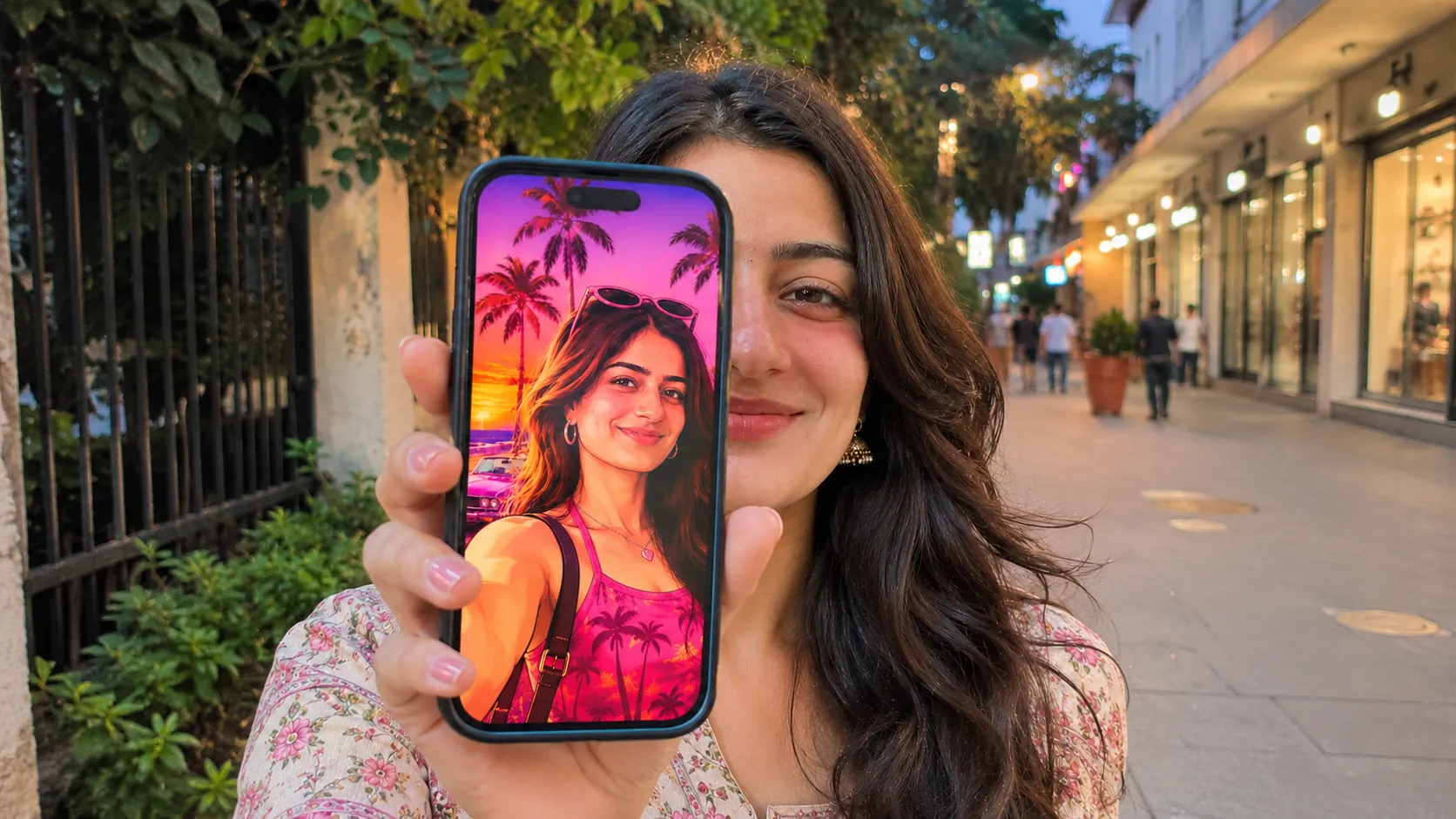
For me, the result was the best part. It is stylized loading screen art with your own face, built around a Vice City mood. I used one clear, front facing selfie, as the page advises. Results can vary with your photo, so a sharp, well framed picture helps a lot.
Hidden Tricks
- Use good light. A clear face gives a cleaner result.
- Face the camera. The page asks for front facing photos.
- Try different scenes. A beach and a neon night feel very different.
- Use your own city. The page lists it as a scene option.
Common Mistakes
- Using a side angle or a blurry selfie. The face may not come out well.
- Adding more than two people. The page says up to two works best.
- Expecting official artwork. It is fan style art.
- Using someone else's photo without asking. Always get permission.
Comparison Table: Solo Mode vs Couple Mode
| Feature |
Solo Mode |
Couple Mode |
| Photos needed |
1 clear selfie |
2 clear photos |
| Result |
One character |
A Jason and Lucia style duo |
| Best for |
Gamers and creators |
Couples |
| Main limit |
Needs a front facing photo |
Both photos need to be clear |
FAQs
1. What does the app do?
It turns a selfie into Vice City style game art, as described on the
app page.
2. What photo works best?
A clear, front facing photo. Up to two people work best.
3. Is it official game artwork?
No. The page describes it as fan art, so treat it as unofficial.
4. Is it free?
New accounts get 10 free Joules, and each run uses credits. Prices can change, so check the
pricing page.
5. What if it does not work?
Conclusion
This app is a quick, fun way to see yourself in a neon Vice City story. It is easy to use, it has a couple mode, and the results impressed me.
The limits are real too. It needs a clear photo, works best with up to two people, and is unofficial. At the time of writing, the app is also new and has no reviews yet.
GTA and Vice City belong to their respective owners. This post is not affiliated with or endorsed by them.


0 Comments
No comments yet. Be the first to start the discussion!